Software Safety Basics for New AI and Online Tools

New apps and AI tools are easy to sign up for, and just as easy to set up in a risky way. Whether you are trying a chatbot or comparing construction safety software for a team, the same few habits protect your accounts and data. This post walks through simple steps: strong passwords, two-step sign-in, careful permissions, and checking who is behind a tool before you trust it.
Every time I sign up for a new AI tool or app, even something like construction safety software, I feel a little rush. New features, a free trial, a shiny dashboard. And every time, I have to remind myself to slow down for about five minutes before I start clicking "Allow" on everything.
Those five minutes matter. Most of the trouble people run into with new software doesn't come from clever hackers. It comes from small, rushed choices: a reused password, a pasted file that had private info in it, an app that got access to a whole inbox when it only needed one folder.
Here is my online safety checklist for new software tools, made up of the habits I actually use. None of them are hard. They just need to become routine.
Short on time? Our top picks: 1Password, Bitwarden, Dashlane and Google Authenticator. See all picks
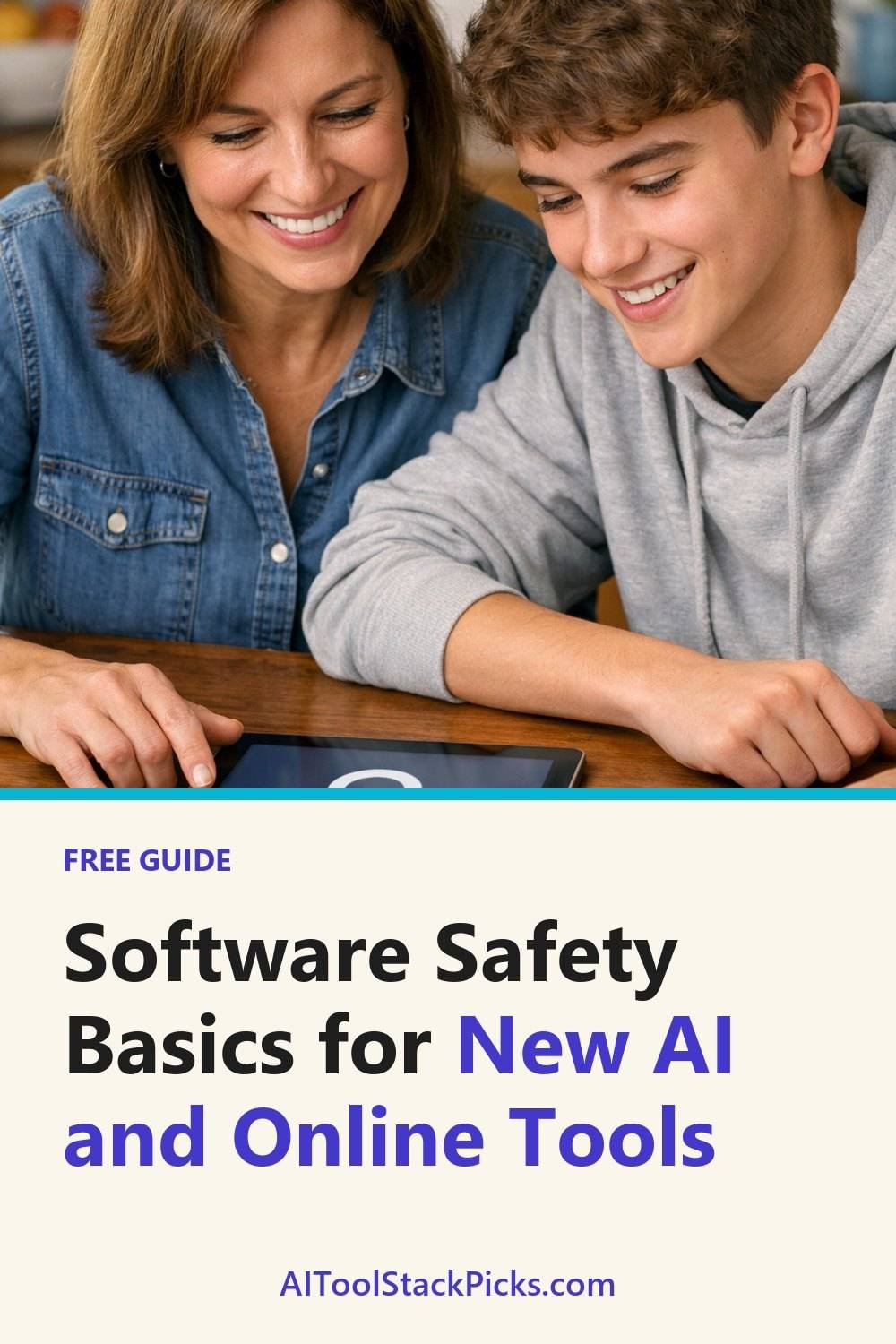
Give every tool its own strong password: a new software safety checklist for beginners
Many people have one "good" password that they use almost everywhere. It felt fine until a small site I'd forgotten about had a data leak. Suddenly I was changing passwords on a dozen accounts at midnight, trying to remember which ones shared it.
That's the real problem with reusing passwords. If one tool gets breached, every account with that same password is now at risk. New startups and small AI tools are exactly the kind of places that might not have years of security practice behind them yet.
A strong password is long and random. Something like a string of four or five unrelated words, or a long jumble a password manager creates for you. You don't need to remember these. I let a password manager such as 1Password or Bitwarden handle it, and I only remember one main password for the manager itself.
If you've never used one, it can feel like a hassle the first week. After that, it's honestly easier than typing passwords from memory.
Turn on two-step sign-in when you see it
Two-step sign-in (sometimes called two-factor or 2FA) means that logging in needs your password plus something else, usually a code from an app or a text message. So even if someone gets your password, they're still stuck.
Not every new tool offers it. When one does, I turn it on right away, usually in the account or security settings. It takes a minute.
A small opinion: if you have the choice, an authenticator app such as Google Authenticator or Microsoft Authenticator is usually a better pick than text message codes, since texts can sometimes be redirected. But text codes are still much better than nothing. Don't skip it just because the "best" option isn't there.
One more tip from experience. When a tool gives you backup codes, save them somewhere safe. Losing access to an account for days is a real risk if you switch phones and ignore those backup codes the first time around.
Read the permissions before you connect any software management tools
This is the one most people rush. A tool says "Connect your Google account" or "Link your workspace," a popup appears, and you click Allow without reading.
Those popups tell you exactly what the tool will be able to do. Read them. Some examples of what you might see:
- View your email address and basic profile (usually fine)
- Read, send, and delete your emails (a big deal)
- See and edit all files in your drive (also a big deal)
- Manage your calendar
Ask yourself a simple question: does this tool need that much access to do the one thing I want? A note-taking AI that summarizes meetings might need your calendar. Does it need to delete your emails? Probably not.
If the permissions feel like way too much, I either look for a setting that limits access or I skip the tool. There are usually other options that ask for less.
Be careful what you paste into an AI chatbot online free
Any AI chatbot online free to use makes it really easy to paste in a whole document and ask for help. It's easy to do, and many people do it without noticing. But I've learned to scan what I'm pasting first.
Things I never paste into a chat box:
- Passwords, API keys, or login details
- ID numbers, bank details, or card numbers
- Client contracts or private client info
- Health details about me or anyone else
- Anything a client or employer asked me to keep private
Different tools handle your data in different ways. Some may store your chats or use them to improve their systems, and settings can change over time. The only way to know is to check that tool's privacy page and settings yourself. If you work with sensitive info for your job, it's worth asking your employer or a qualified professional what's allowed.
A simple workaround is to replace names and numbers with placeholders. "Client A" instead of a real name. "[amount]" instead of a real figure. The AI still helps, and nothing private leaves my computer.
By the way, if you like having simple prompts ready to go (with no private info needed), you can grab the Free 25 Writing Prompts Starter Sheet by joining the email list on this page.
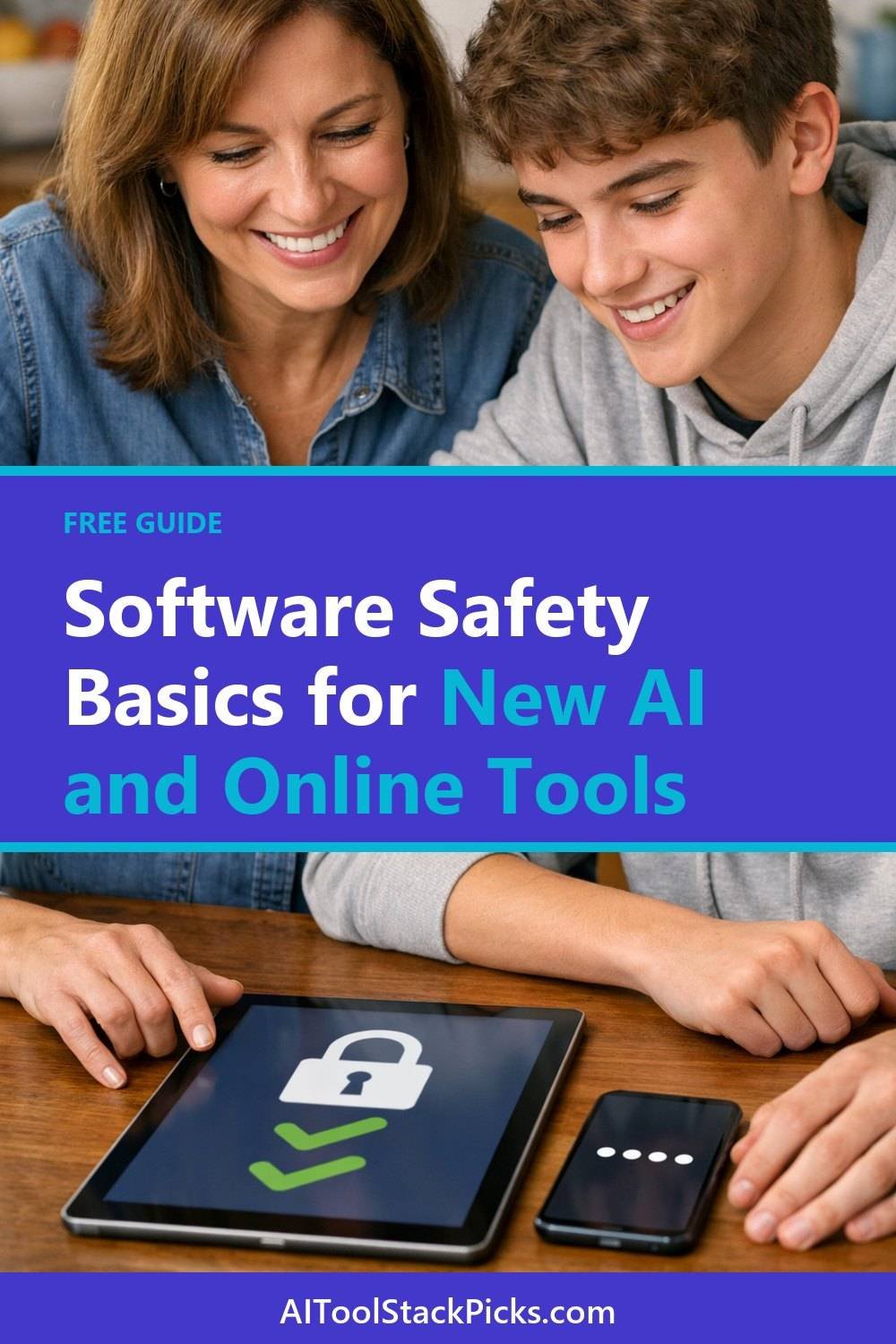
Check that the company is real before you try construction safety software
New AI tools pop up every week. Most are legit. Some are thrown together fast, and a few are outright fake, set up to collect logins or payment details.
Before I make an account, I spend a couple of minutes looking around the site. Here's what I check:
- Is there a real contact page with an actual way to reach someone?
- Can I find a privacy policy and terms of service, and do they read like real documents?
- Does the company name show up anywhere outside its own site?
- Is the web address spelled correctly, with no odd extra letters?
Be wary of sites that push hard with countdown timers or "lifetime deals" that seem too good. That doesn't always mean scam. But it does mean I slow down and look closer.
Also, be careful with ads and emails pretending to be a popular tool. Type the address yourself or use a bookmark rather than clicking a link in an unexpected email.
Clean up your connected apps every few months with a simple safety checklist
This is the least exciting habit and maybe the most overlooked. Over time, you connect lots of tools to your main accounts. You try something for a week, forget about it, and it still has access to your email or files months later.
Most big accounts (like Google, Microsoft, or social media accounts) have a page that lists connected apps or third-party access, which also helps if you use tool tracking software. Go through your list every few months, ideally when you're already in a tidying mood.
The rule is simple. If I don't recognize it or haven't used it lately, I remove it. You can always reconnect later if you need it. It's a bit like cleaning out a junk drawer. You find stuff you forgot existed.
If you like keeping track of this kind of thing on paper or in a checklist, the AI and Software Tools Planner and Checklist Bundle below this post has pages for logging the tools you use and when you last reviewed them.
Our top picks for safer software habits
These are real tools that help with the habits above, from passwords to two-step sign-in. Pick the ones that fit how you work.
1Password
A password manager that suits people who want one main password and unique logins everywhere. It works well for families and small teams too. Check which devices and browsers you need it on before you commit.
Bitwarden
A password manager that suits people who like having a free starting option and a clear set of settings. Check which features sit in the free version and which need a paid plan.
Dashlane
A password manager that suits beginners who want a simple, guided setup. Check how it handles sharing and which devices your plan covers.
Google Authenticator
An authenticator app for two-step sign-in that suits anyone who wants to move away from text message codes. Check how to back up or transfer your codes before you switch phones.
Microsoft Authenticator
Another authenticator app, and a handy fit if you already use Microsoft accounts. Check that the sites you use support it, and set up recovery first.
Authy
An authenticator app that suits people who use more than one device. Check how its backup options work and decide if you are comfortable with them.
Proton Pass
A password manager that suits people who care about privacy and want a tool from a privacy-focused company. Check which features come with the free plan and which need an upgrade.
Check current plans and prices on each brand's own site before you choose.
FAQ
Do I really need a password manager?
You don't strictly need one, but it makes unique passwords much easier to keep. Without one, most people end up reusing passwords. Many managers have free versions, so check their pages to see what fits you.
Is it safe to use free AI tools and online cloud storage free plans?
Plenty of free tools are fine to use. The key is to read the privacy page, check the permissions, and avoid pasting private info. Free or paid, the same habits apply.
What should I do if I think an account was compromised?
Change that password right away, plus any other accounts that used the same one. Turn on two-step sign-in and check for connected apps or devices you don't recognize. If money or work data is involved, contact the company's support or your bank directly.
How often should I review my connected apps?
Every few months is a good rhythm for most people. It also helps to do a quick check any time you stop using a tool. It only takes a few minutes.
Quick recap of the new software safety checklist
Use a unique password for each tool, and turn on two-step sign-in. Read permissions before connecting accounts. Keep private info out of chat boxes. Make sure a company is real before you sign up, and clear out old connected apps now and then.
None of this will slow you down much once it's a habit. You'll still get to try all the new tools you want, just with a lot less worry.
If you want an easy next step, join the email list to get the Free 25 Writing Prompts Starter Sheet so you have something useful to try in your next AI tool. Then take a look at the Starter Guide to AI and Software Tools and the planner bundle below this post if you'd like a bit more structure as you test new apps.
Printables and tools that can help
AI and Software Tools Planner and Checklist Bundle
A printable bundle with a 30-day goal page, weekly planner and checklists for choosing and organizing the...
See detailsStarter Guide to AI and Software Tools
A plain-English starter guide to choosing and using AI and software tools safely. General information...
See details