Prompt Library: How to Organize Yours

It's easy to end up with your best AI prompts scattered across six places at once. Some sat in a notes app like Apple Notes. Some were buried in old chat threads. A few were written on sticky notes that I'm pretty sure went out with the recycling. Every time I needed a good one, I'd end up rewriting it from memory, and it never came out quite as well the second time.
A prompt library, which is really just a prompt organizer, fixes that. It's just one place where your working prompts live, sorted so you can find them in seconds. You don't need a fancy prompt library tool. You need a simple system and the habit of using it.
Here's how to set one up, step by step, plus the common mistakes to skip along the way.
Short on time? Our top picks: Google Sheets, Notion, Airtable and Evernote. See all picks
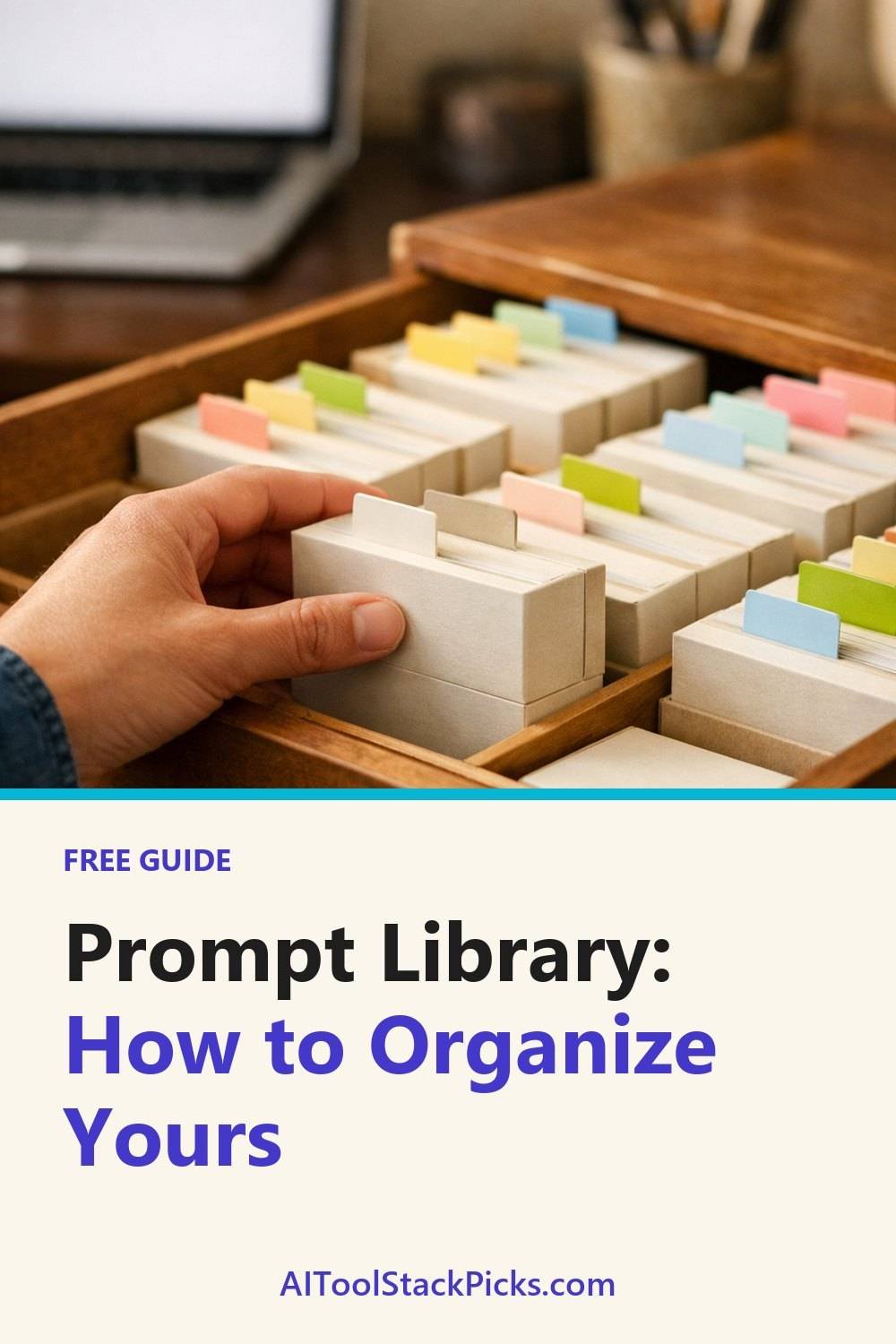
What you need for a simple prompt library tool
- One home for your prompts. A spreadsheet like Google Sheets, a notes app, a document, or a paper notebook. Pick one.
- The prompts you already use. Dig them out of chat history, emails and notes.
- About an hour for the first setup. After that, a few minutes a week.
- A way to save sample outputs. Copy and paste works fine, or screenshots if your tool allows it.
That's really it. People spend way too long picking the perfect app. Many people try a few tools before settling on a plain spreadsheet, like Google Sheets, and it often wins because it's boring and fast.
Step 1: Gather everything into one spot
Before you organize anything, collect it. Open your AI tools and scroll back through old conversations. Look for prompts that gave you something you actually used. Copy each one into your chosen home, even the messy ones.
Don't sort yet. Don't edit yet. Just get them all in one pile. When you gather everything in one place, expect to find that many prompts are near copies of each other with tiny changes. That was a good sign I'd been rewriting the same thing over and over.
Tip: Set a timer for 30 minutes. If you don't, you'll get pulled into rereading old chats and lose the whole afternoon.
Step 2: Group your prompt library by task
Now look at your pile and ask one question about each prompt: what job does this do? Most people end up with groups like these:
- Writing (blog drafts, captions, product descriptions)
- Research (summaries, comparisons, finding angles)
- Email (replies, follow-ups, cold outreach)
- Editing (shortening, fixing tone, proofreading)
- Planning (outlines, schedules, to-do lists)
Your groups might look different. If you do a lot of social media, give it its own group. If you only write emails twice a month, fold that into a general "writing" group.
You can skip grouping by tool, at least as your main system. When you sit down to work, you think "I need to write a follow-up email," not "I need something for this one app." Group by what you're trying to get done.
Tip: Keep it to five to eight groups at the start. You can always split one later. Too many groups too early and you'll forget where things go.
Step 3: Give each prompt in your organizer a clear name
This sounds small. It isn't. A name like "email prompt 3" tells you nothing two weeks from now. A name like "Polite follow-up after no reply" tells you exactly what you'll get.
A good name answers what it does and, if it matters, for whom. A few examples of what entries might look like:
- Turn rough notes into a blog outline
- Rewrite paragraph for a friendlier tone
- Summarize long article into five bullet points
- Product description, short version for listings
Start the name with an action word when you can. It makes scanning much faster.
Tip: If you can't think of a clear name for a prompt, that's often a sign the prompt is trying to do too many things. Consider splitting it in two.
Step 4: Note which tool you used
The same prompt can give pretty different results in different AI tools. One might nail a casual tone, another might be better at sticking to a word count. So write down which tool you used when the prompt worked well.
You can add a simple column to your prompt library tool for this. Sometimes I also jot the date, because tools change over time and a prompt that worked great last spring might act a little differently now. That date has saved me from a lot of "why isn't this working anymore?" frustration.
If you're still figuring out which tools suit which jobs, the AI Prompt Library and Tool Comparison below this post lays that out side by side. It's handy if you'd rather not test everything yourself.
Tip: If you use settings like a custom instruction or a specific mode, note that too. Those little details are easy to forget and often explain why results change.
Step 5: Save an example of good output
This is the step most people skip, and it's the one I'd fight hardest to keep. Under each prompt, paste a sample of the result you liked. Not the whole thing if it's long. A paragraph or a few lines is enough.
Why bother? Because when you come back later, you can compare. If the new output looks worse than your saved example, you know something's off. Maybe the tool changed, maybe you left out part of the prompt. Without the example, you're guessing.
It also helps you trust your own library. Seeing a solid result right there makes you actually reach for the prompt instead of starting from scratch.
If you'd like a head start on the writing side, my Free 25 Writing Prompts Starter Sheet is yours when you join the email list, and it's an easy way to fill your first group.
Tip: Save one bad example too, if you got one. Writing "this happens if I forget to mention the audience" is a great little reminder.
Step 6: Add a simple rating
Not every prompt earns its place. A quick rating helps you see which ones are worth keeping. A three-level system works well:
- Keeper - works well almost every time
- Okay - useful but needs tweaking
- Testing - new or unproven
You could use stars or numbers instead. Five-star ratings tend to get overthought. It's easy to spend a minute deciding between a three and a four, which defeats the point. Fewer choices means you'll actually do it.
Update the rating whenever you use a prompt. If an "okay" prompt keeps working, bump it up. If a "keeper" lets you down twice in a row, mark it and look at why.
Tip: Sort your library so keepers show up first in each group. You'll grab the reliable ones without thinking.
Step 7: Prune your prompt library once a month
Libraries get cluttered fast. Pick one day a month, maybe the first Sunday, and spend fifteen minutes cleaning up. Here's what I do:
- Delete prompts I haven't touched in a couple of months and don't miss
- Merge near-duplicates into one better version
- Retest a few "keepers" to make sure they still hold up
- Move "testing" prompts up or out
The first time I pruned, I cut my list almost in half. It felt strange deleting stuff, but the library got so much easier to use. Fewer, better prompts beat a giant list you never open.
Some people like a printable prompt library tool they can fill in by hand. If that's you, the Prompt Planner and Prompt Log Workbook below this post gives you pages for logging prompts and checking them off during cleanups.
Tip: Put the prune day in your calendar as a repeating event. If it's not scheduled, it won't happen. Many libraries don't stay useful until you do that.
Troubleshooting
"I can never find the prompt I need."
Your names are probably too vague, or you have too many groups. Rename your most-used prompts with action words first. Then use your app's search. A clear name plus search beats any folder system.
"My library got huge and messy again."
This usually means pruning slipped. Do one big cleanup now, then keep it small going forward. It also helps to only add a prompt after it's worked at least once.
"A prompt that used to work now gives weak results."
Check your saved example and your tool notes. The tool may have changed, or you may be using a different one. Try adding more detail about audience, length or tone, then save the new version with today's date.
"I keep forgetting to use the library."
Make it easy to reach. Pin it, bookmark it, keep it open in a tab while you work. Keeping your spreadsheet open next to your AI tool can change how often you actually use your prompts.
"I don't know if my prompts are any good."
That's what ratings and examples are for. Give it a few weeks of honest rating. Patterns show up quickly, and you'll start to see what your best prompts have in common.
Tools worth considering for your prompt library
You can build a prompt library almost anywhere, but a few well-known apps make it easier. Here are some real options, depending on how you like to work.
Google Sheets
A good fit if you want a plain, searchable table with columns for group, tool, rating and date. It suits people who like simple systems. Check how you'll reach it on your phone if you want prompts handy away from your desk.
Notion
Suits people who want a database with filters, tags and saved views for their prompts. It can do a lot, which is also the catch, so keep your setup small. Look at how it handles search and offline access before you commit.
Airtable
A spreadsheet-style database that works well if you want to sort and filter by task or rating. It suits people who like structure. Check what the free tier covers against what you need.
Evernote
Handy if you already clip notes and web pages and want prompts stored alongside them. It suits people who think in notebooks and tags. Compare its plans to see whether the features you need are included.
Obsidian
A notes app that keeps files on your own device, which appeals to people who prefer local storage. It suits those comfortable with simple text files and links. Check how syncing across devices works before relying on it.
Apple Notes
A low-effort choice if you live on Apple devices and want something already installed. Folders and pinned notes cover the basics. It's less flexible for rating or filtering, so decide if you need that.
TextExpander
A snippet tool that lets you insert saved text with a short shortcut. It suits people who reuse the same prompts many times a day. Check that it works with the apps and browsers you use.
Check current plans and prices on each brand's own site before you choose.
FAQ
What's the best prompt library tool?
Whatever you already open every day. A spreadsheet, notes app or plain document all work fine. The habit matters far more than the software.
How many prompts should I keep?
There's no magic number. Twenty prompts you trust beat two hundred you never use, which is great advice for any prompt library tool for creators. Let your monthly pruning decide.
Should I share my prompt library with a team?
It can help, especially if everyone does similar tasks. Just agree on naming and groups first, or it gets chaotic fast. Keep a personal section for your own experiments too.
Do I need to save every version of a prompt?
Not usually. Keep the best current version and maybe one older one if it worked differently. Too many versions makes it harder to choose.
Your next step
Start small. Gather your prompts today, sort them into a handful of groups, and name a few clearly. If you'd like something to fill your library right away, grab the Free 25 Writing Prompts Starter Sheet by joining the email list. Then, if you want more structure, take a look at the AI Prompt Library and Tool Comparison or the Prompt Planner and Prompt Log Workbook below this post. Pick whichever fits how you like to work, and build from there.
Printables and tools that can help
AI Prompt Library and Tool Comparison
A browser tool to store your prompts and compare tools on your own criteria. Your data stays in your...
See detailsPrompt Planner and Prompt Log Workbook
A printable workbook to plan prompts and log what...
See details